Oracle is investing heavily in AI and MCP. You can see many Open-source MCP GitHub projects here and the database MCP line of product here both for Oracle and MySql. There is a very useful MCP server for the OCI (Oracle Cloud Infrastructure) as well. What is MCP, and what implementations options are available for Oracle Database?
As organizations increasingly integrate AI into their workflows, one challenge keeps surfacing:
How do we securely and efficiently connect large language models (LLMs) to enterprise data in a standard fashion?
This is where MCP (Model Context Protocol) comes in.
Model Context Protocol (MCP) is an open standard that enables LLMs to securely access external systems such as databases, Mail servers, APIs, and files through a unified interface.
Think of MCP as a universal adapter for AI, eliminating the need to build custom integrations for every data source.
Images in this post were created with AI.
This post is a very enhanced version of previous, no longer correct one. In the AI world, few months change everything.
Why MCP Matters
MCP is not just a technical convenience—it’s a shift in how we interact with data:
-
Faster development - no need for custom connectors
-
Improved accessibility - non-technical users can query data using plain English

MCP in Oracle Database: Four Approaches
Oracle provides 4 primary ways to work with MCP, depending on your environment and your needs.
1. SQLcl MCP - A local client installation for personal use. It deploys Local MCP server using SQLcl.
2. Built-in ADB MCP - A specific Autonomous Database built in MCP connection. For simple and basic implementations.
3. OCI Database Tools MCP - Centrally managed OCI deployment, IAM roles, and governed SQL reports across cloud databases. For Cloud Database implementations on OCI or other cloud vendors.
4. ORDS MCP - ORDS Standalone deployments using direct user database connection pools, includes a /mcp endpoint for MCP Clients, also fully OAuth compliant to the MCP specification.
The first 2 options are mostly quick and easy personal or developer-oriented deployments. Options 3 & 4 are Enterprise oriented solutions. AFAIK all the MCP options here are free or free option of the Database.
Which Oracle Database MCP implementation should I use?
|
Developer / local experimentation
|
SQLcl MCP
|
|
Simple MCP access to Autonomous Database
|
Built-in ADB MCP
|
|
Centrally governed cloud deployment
|
OCI Database Tools MCP
|
|
Customer-managed enterprise MCP endpoint
|
ORDS MCP
|
Jeff Smith has a nice comparison table between SQLcl, OCI Database Tools and ORDS here. He has a brand-new video describing the 3 above mentioned options here.
Whatever you do, you might want to load Oracle Skills to your AI client, before you start. GitHub Oracle Skills.
1. Oracle SQLcl
Oracle SQLcl is a powerful, flexible, and free command-line interface designed for modern Oracle AI Database professionals.
SQLcl's integrated MCP Server bridges Oracle AI Databases with AI-driven solutions by allowing Large Language Models (LLMs) to interactively execute queries and process results. And should work with versions 19 and beyond. Connection credentials, wallets, and saved passwords remain local to SQLcl; however, SQL text and returned results may be passed to the LLM through the MCP client or terminal output.
The Oracle product page is here. The download page is here. This is a LiveLabs training about Exploring the SQLcl MCP server. And a short video by Jeff Smith about it.
The SQLcl MCP server exposes tools for common database tasks, including:
- list-connections - Retrieves list of named and stored connections available for MCP
- connect - Establishes requested connection
- run-sql - Runs SQL command, SQL script, or PL/SQL block
- run-sqlcl - Runs SQLcl command (load, ddl, info, datapump, etc...)
- schema-information - Retrieves metadata and annotations
- disconnect - Ends database session, closes connection.

Most people use the SQLcl MCP that comes as part of the built in SQL Developer extension of VS Code (in that case no need for specific download).
The basic diagram is:
For historical reasons there is a built-in setup for Cline AI client in SQL Developer (see the blog post Using SQLcl in SQL Developer for VS Code for MCP with Cline if it's relevant to you).
I have a Codex extension in my VS Code. Wanted to connect to SQL Dev. connection named local_bi.
My Codex suggested 2 options for set up.
1. Add relevant section in config.toml that calls SQL Developer with relevant args. When I complained that it will force me to update the file with each version update of SQL Dev. It suggested option 2.
2. Install SQLcl in a stable folder and reference it in the config.toml (see the second image below)
After the setup everything worked fine with my 19.24 Oracle Database.
In my environment, I successfully connected to an Autonomous Database instance connection that was in my SQL Developer/SQLcl connection list. That is expected, the SQLcl MCP server just uses the connection in SQL Developer.
There is actually option 3, without MCP setup...
3. Direct SQLcl from Codex (no MCP)”. If Codex has terminal access and SQLcl is available locally, it can invoke SQLcl as a command-line program and use an existing named connection.
Codex → local terminal → SQLcl → saved named connection → Oracle Database
In this model, SQLcl stores the saved connection and password locally (wallet). Codex does not need the password in its prompt or setup in config.toml.
This is useful when:
- SQLcl is installed, or available through the SQL Developer for VS Code installation;
- the connection is saved in SQL Developer\SQLcl’s connection store;
- the Codex environment can run the
sql command;
This route does not provide the standardized MCP tools such as list-connections, schema-information, or run-sql. Instead, Codex works through terminal commands and SQLcl output. It is therefore simpler to start, but less structured than the SQLcl MCP approach.
(Thanks, Efrat Landman for this part.)
If you want to read more about SQLcl MCP option, see here:
Controlled Oracle Actions with SQLcl MCP
Jeff Smith covers lots of relevant material:
2. Autonomous Database (ADB) MCP
Oracle Autonomous Database includes a built-in MCP server that can be enabled with a simple configuration. For real "Enterprise Solution", you should probably use "OCI Database Tools MCP", described in next section.
How to enable:
In OCI go to the ADB page and under Tags, add a free-form tag to your database:
This approach is ideal for:
-
Cloud-first environments
-
Quick setup with minimal configuration
-
Built-in scalability and management
For additional information see
In my Windows environment, native Codex OAuth did not work reliably, so I used mcp-remote as a proxy. This was an environment-specific workaround rather than a requirement of the ADB MCP architecture.
Instead of the config.toml settings entry from the Oracle documentation in this format:
[mcp_servers.adb]
url = "https://dataaccess.adb.{region-identifier}.oraclecloudapps.com/adb/mcp/v1/databases/{database-ocid}"
startup_timeout_sec = 30
tool_timeout_sec = 300
enabled = true
I used somewhat different setup for mcp-remote proxy:
[mcp_servers.adb_proxy]
command = 'C:\Program Files\nodejs\npx.cmd'
args = [
"-y",
"mcp-remote",
"https://dataaccess.adb.{region-identifier}.oraclecloudapps.com/adb/mcp/v1/databases/{database-ocid}",
"--allow-http",
]
startup_timeout_sec = 120
tool_timeout_sec = 300
enabled = true
3. OCI Database Tools MCP
This is the default, Enterprise Cloud MCP solution for Oracle Database on OCI and other Cloud vendors.
Both users and administrators should be happy here. Users, because they get an easy to use, organization SSO based access to the data using MCP in a secure and governed way. Administrators because OCI Database Tools MCP is all about Governance and Security.
It's described by Oracle as:
Oracle Database Tools Service is a managed offering in Oracle Cloud Infrastructure (OCI) that enables you to create connections to any Oracle Database in OCI that can be reused by multiple users, resources, and services. Once a connection is established, use the web-based SQL Worksheet for direct SQL access or use the connection in a SQLcl session via the OCI Cloud Shell. Sensitive information such as passwords and Autonomous Database client credentials are stored securely and encrypted in your OCI vault and never viewed when connections are being used.
Now available: managed MCP Servers for Oracle AI Database.
In OCI menus it is not located under the ADB part of the OCI menus but rather under Developer Services / Database Tools. You might not see it, because it's at the bottom of the screen. To make sure it is hidden enough, the Menu entry does not contain the MCP initials. In the menu it's the full syntax of MCP Servers - Model Context Protocol Servers.
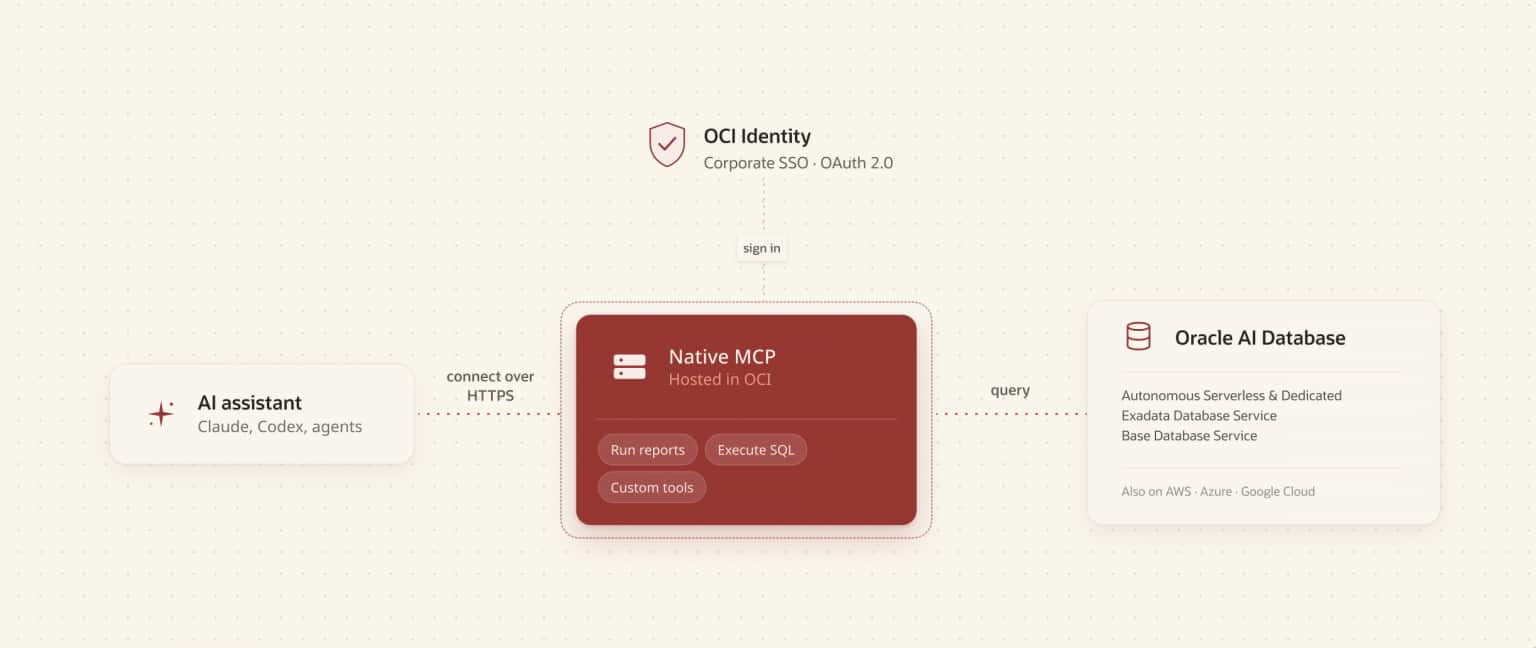
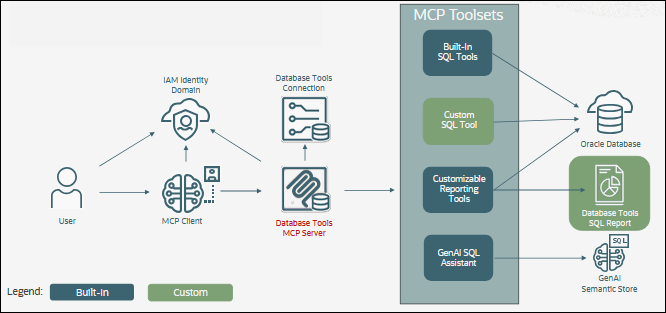
I prefer Jeff's blog image
It's easier to read than the documentation one
The images describe the same thing.
OCI Identity that can be federated with other authentication providers.
Centrally managed access with Roles and control.
MCP Servers connected with HTTPS protocol.
An impressive set of tools for SQL Generation & Custom-made SQL code for standard queries.
To create the service, you need access to Identity Domain (Identity & Security / Identity / Domains), Have a connection (Developer Services / Database Tools / Connections) and Object Storage Bucket (Storage / Object Storage / Buckets)
For better data security and governance there are 4 Toolsets:
- Built-in SQL tools - Agent/LLM generates SQL with database user's privileges
- GenAISQL Assistant - SelectAI based Assistant.
- Reporting tools - Report author writes the code and the agent discovers and executes curated, parameterized queries. This way the governance is based on Published reports + authenticated user's by group membership.
- Custom Tools - Tool Developer creates tools in the database and the agent invokes (and uses parameters) for explicitly exposed tools.
When I try to explain to myself what is the difference between Built-in SQL tools & GenAISQL Assistant, I suspect that this is the case:
Both are based on users natural-language question. The first lets the Agent/LLM generates SQL and uses dbtools_execute_sql to run the SQL. In the second MCP GenAI Assistant invokes the Oracle Select AI / semantic layer to generate the SQL and execute it.
What about Built-in SQL tools vs Reporting tools vs Custom Tools?
| Reporting Tools | - Publisher defines the queries; agent chooses report + parameters |
| Custom Tools - | Developer defines the operation; agent supplies parameters |
Who controls the SQL?
Built-in SQL Tools
LLM/agent generates SQL dynamically → maximum flexibility → governed primarily through the connected database user's privileges.
GenAI SQL Assistant
Natural language is translated through Oracle's GenAI/Select AI capabilities → Oracle Select AI participates in NL-to-SQL translation rather than leaving SQL generation solely to the external agent.
Reporting Tools
Human publishes approved SQL → agent selects the report and supplies parameters → strong governance for repeatable analytics.
Custom Tools
Developer exposes a specific database operation → agent invokes the operation with parameters → strongest contract for operational workflows.


|
Toolset
|
MCP tool
|
What it does
|
Default roles
|
|
Built-in SQL
|
sql_run
|
Runs SQL against the connected Oracle Database; results
are returned as CSV
|
Operator, Administrator
|
|
schema_information
|
Examines/enriches metadata to provide detailed information
about a database schema
|
User, Operator, Administrator
|
|
request_status
|
Polls an asynchronous request using its toolRequestId and
returns status/result
|
User, Operator, Administrator
|
|
Customizable Reporting
|
report_list
|
Lists the SQL Reports available to the user, including
IDs, descriptions and usage information
|
User, Operator, Administrator
|
|
report_execute
|
Executes a SQL Report using its reportId and supplied
parameters; returns CSV
|
User, Operator, Administrator
|
|
report_sql
|
Retrieves the underlying SQL for a SQL Report
|
Operator
|
|
Generative AI SQL Assistant
|
dbtools_translate_natural _language_query_to_sql
|
Converts a natural-language question into a validated
SQL statement
|
User, Operator, Administrator
|
|
Custom SQL
|
administrator-defined name
|
Runs an administrator-defined SQL or PL/SQL tool with
input parameters
|
Operator
|
In
the video Jeff mentions an interesting option, the ability to create report SQL based on existing reports SQL, rather than generating it from scratch.
For additional information see:
4. Oracle REST Data Services (ORDS) MCP
Oracle REST Data Services (ORDS) MCP Server provides a secure, standards-based bridge between AI agents and Oracle AI Database. Through a remote streaming HTTPS /mcp endpoint, MCP-compatible clients can discover authorized database connections, inspect schema metadata, and execute SQL or PL/SQL using natural-language-driven workflows. ORDS MCP integrates with enterprise identity providers using OAuth 2.0/JWT authentication and restricts access to approved database resources, combining agentic AI capabilities with Oracle’s established security, governance, and auditing mechanisms.
If you intend to install ORDS MCP, please, please read ORDS: now a streaming HTTP MCP Server for Oracle Database before you do.
While ORDS MCP has rather modest tools list:
- database_list
- run_sql
- schema_information
It is a powerful Enterprise solution capable of secure, centrally governed AI MCP solution for Oracle database. The Identity Provider is external to ORDS and belongs to the local organization.

For additional information see:
Let's summarize the options:

Security Best Practices
When connecting LLMs to databases, security is critical.
A recommended approach is to create a read-only MCP user with minimal privileges:
For easier management, you can use roles:
⚠️ Important: Always follow the principle of least privilege. LLMs generate actions based on intent, not risk awareness, so unrestricted access can lead to unintended operations.
In my case I granted the MCP User full privileges in its schema and specific read only grants on other resources.
⚠️ The Security aspect here is important. MCP does not have to introduce a new security layer. The best option is to rely on existing Oracle privileges. This way you don't depend on application-level security.
Auditing and Observability
Oracle MCP provides native observability hooks:
1. Interaction Logging
-
Table:
DBTOOLS$MCP_LOG
-
Tracks:
-
Prompts
-
Generated SQL
-
Execution metadata
2. Session Monitoring
This allows:
-
Real-time tracking of MCP sessions
-
Integration with existing monitoring tools
Final Thoughts
There isn't one “Oracle MCP.” There are several implementation models designed for different levels of control and various types of users.
SQLcl MCP provides a simple path for developers and local AI clients. Autonomous Database provides a native managed MCP endpoint. OCI Database Tools MCP adds centralized identity, governance, reporting, and controlled tools. ORDS MCP provides a customer-managed enterprise endpoint based on standard HTTP and OAuth.
With Oracle’s built-in support, you can enable secure, auditable, and AI-driven data access in minutes.
As AI adoption grows, MCP is quickly becoming a foundational component of modern data architectures.